Check Image Resolution Online
Use this free image resolution checker to find out how many pixels your photo contains and check its dimensions before printing or sharing it.
Drop your image here
or browse from your device
Calculate manually without an image
Enter pixel dimensions or physical inches/cm to calculate DPI and print sizes directly.
How to Use This Free Image Resolution Checker
Whether you are preparing a photo for print, checking digital artwork, or verifying an image for social media, this online resolution checker helps you inspect your picture in three simple steps:
1. Upload or drag and drop your image into the checker above (or click "Open Manual Calculator" if you already know your dimensions).
2. View the image's pixel dimensions and other available resolution details.
3. Use the results to understand whether the image is suitable for your intended purpose.
What this checker displays:
• Image width in pixels
• Image height in pixels
• Total megapixels (MP)
• Image aspect ratio (such as 4:5, 3:2, or 1:1)
• Embedded DPI tag, if stored in the file metadata
• Maximum print size and effective resolution (PPI) across standard photo formats
Note on DPI metadata: Many web images, PNGs, and phone photos do not contain an embedded DPI tag. If your file shows no DPI metadata, your image resolution is determined by its pixel width and height.
All file inspection occurs directly in your web browser using client-side JavaScript, meaning your image is read locally on your device.
What Is Image Resolution?
Image resolution commonly refers to the number of pixels in an image, expressed as width × height.
For example, an image that is 4000 × 3000 pixels contains 12,000,000 pixels, or 12 megapixels.
More pixels can preserve more detail, which allows you to crop into photos or print them at larger physical sizes without blurriness. However, a high pixel count alone does not guarantee a sharp photo. Final image quality also depends on optical focus, camera sensor quality, lighting, compression artifacts (such as heavy JPEG compression), and the sharpness of the original image. An out-of-focus or motion-blurred photo will still look blurry even if saved at a very high pixel count.
| Resolution Standard | Typical Pixel Dimensions | Total Megapixels | Common Use |
|---|---|---|---|
| Full HD (1080p) | 1920 × 1080 pixels | 2.1 MP | Web, video & monitor displays |
| 4K UHD | 3840 × 2160 pixels | 8.3 MP | High-resolution screens & TV |
| Standard Smartphone Camera | 4032 × 3024 pixels | 12.2 MP | Standard phone photos (4:3 ratio) |
| High-End Mirrorless / DSLR | 6000 × 4000 pixels | 24.0 MP | Detailed photography & large prints |
How to Check Photo Resolution Online
When you want to inspect a picture before printing or publishing, you can drop your file into the tool above to see its exact digital specifications.
To understand your results, keep in mind the differences between these key measurements:
• Pixel Dimensions: The absolute number of horizontal and vertical pixels that make up the digital image (for example, 2400 × 3000 pixels).
• Megapixels: The total number of pixels in the image divided by one million (for example, (2400 × 3000) ÷ 1,000,000 = 7.2 megapixels).
• Print Resolution (PPI): Pixels per inch at a chosen physical print size. PPI describes how tightly packed those pixels will be when printed onto paper. For example, 2400 × 3000 pixels printed at 8 × 10 inches equals 300 PPI (2400 ÷ 8 = 300).
Important distinction: Image pixel dimensions describe the digital file itself, whereas printer DPI (dots per inch) refers to the physical droplets of ink placed onto paper by a printing machine. For a deeper breakdown of density terms, see our what 300 DPI means guide or calculate maximum sizes with the print size calculator. If your image resolution needs to be adjusted for web or print requirements, you can change its dimensions using our free image resizer.
What to Do After Checking Your Image Resolution
Once you know your image's pixel dimensions, aspect ratio, and embedded metadata, here is how to use that information:
• If your image has enough pixels for print: A photo with at least 300 pixels per inch of desired print size (such as 2400 × 3000 px for an 8 × 10 print) is ready for high-quality printing. Verify print readiness with our 300 DPI checker.
• If your image has fewer pixels than required: Printing at a large size may result in visible pixelation or softness. Use our image print size calculator to determine the maximum physical size your image can print cleanly at 300 or 150 DPI.
• If your image has plenty of pixels but no DPI tag: Missing DPI metadata is normal for phone and web images and does not reduce print quality. If a print lab or submission form requires an embedded 300 DPI tag, set it instantly using our free DPI converter.
• If your aspect ratio does not match your frame: Standard cameras shoot 3:2 and smartphones shoot 4:3, while popular frames like 8 × 10 (4:5) and 5 × 7 require slight cropping. Adjust your pixel dimensions and crop ratio with our image resizer.
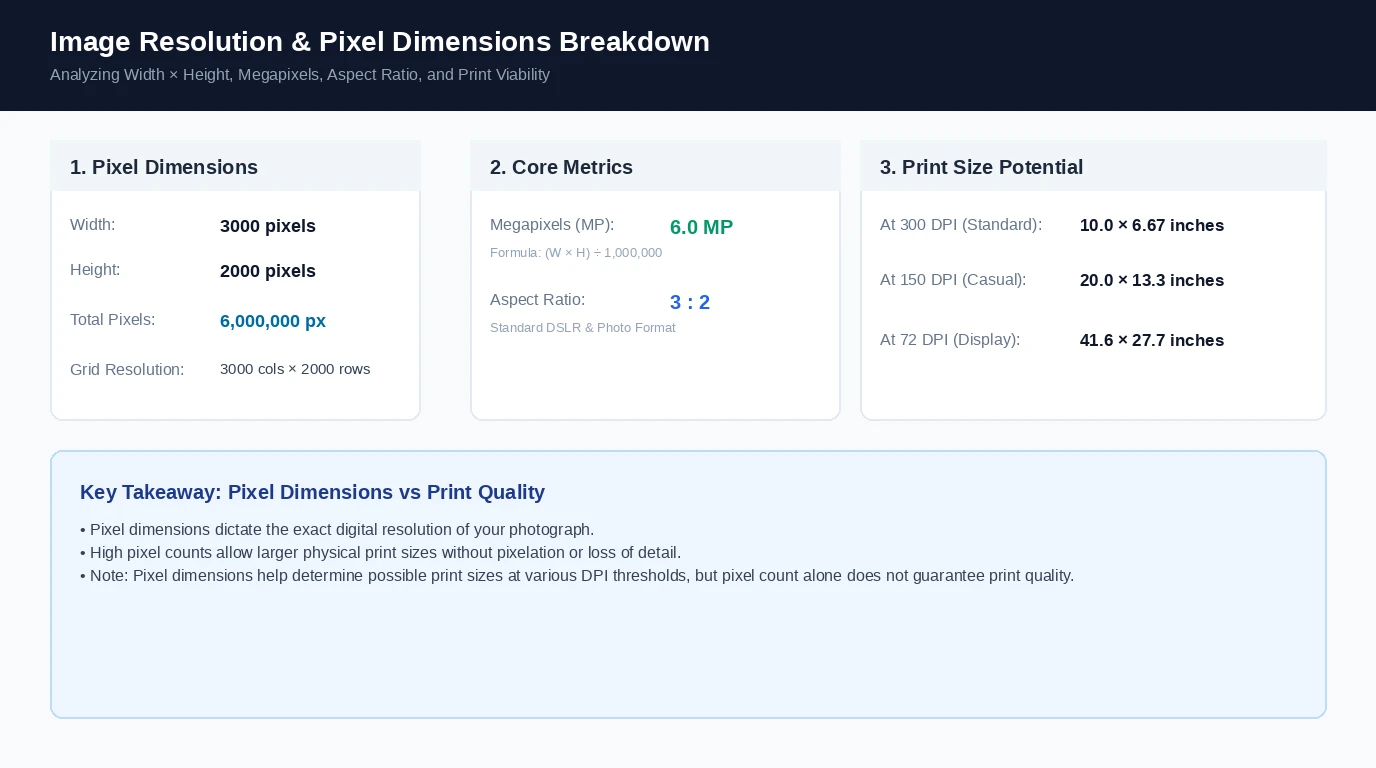
Technical Infographic: Image Resolution & Pixel Dimensions Breakdown
Visual breakdown of width and height in pixels, total megapixels, aspect ratios, and how pixel counts determine possible print sizes without guaranteeing quality alone.
Frequently Asked Questions
Drop or select your photo in the free checker at the top of this page. The tool instantly reads your image and displays its width in pixels, height in pixels, total megapixels, aspect ratio, and print size estimates.